Rohos Logon Key for Mac. v.1.4.1

(updated)
Today we present Rohos Logon Key v1.4.1 for Mac OS X, with YubiKey support.
New features:
+ added Yubikey support
+ added separate uninstaller application
+ allows to customize text and images in locked screen (green key)
– fixed bug when using USB flash drives of the same model/manufacturer
* improved design for “Add USB Key” dialog box. Now Rohos Logon  does not display Apple USB devices without serial number.

download here (beta)

Notes about Yubikey support:
– To use Yubikey as a security token for Mac, install Rohos Logon > open Prefecences and choose “Yubikey” in the drop-down list.
– For a while Rohos Logon doesn’t verify OTP. See this notes. But we are already working on this solution.
– For the YubiKey we do recommend to clear ”Activate password protected screensaver upon USB key removal…” option in preferences.

A few screenshots:
Read more

Command line for Rohos Disk

Rohos Disk Encryption has a few command line options, so that the encrypted disk can be connected and disconnected by using shortcuts or a BAT file.

agent.exe "c:\My Documents\rdisk.rdi" /letter:Z: /log

or

agent.exe \_rohos\rdisk.rdi

Request a password to connect Rohos disk rdisk.rdi.

/letter:Z: – the drive letter it will be connected (optional)
/log – allows creating a log file (agent.log) when performing the operation. Only when the disk is mounted from a USB drive.
/password – allows specifying a password for Rohos disk

Second option would unmount the disk, which is located on the USB drive.

agent.exe /unmount:Z: 

Disconnect Rohos disk Z:

agent.exe /unmount:ALL
Rohos will disconnect all of  the Rohos drives.

Rohos Disk shortcuts

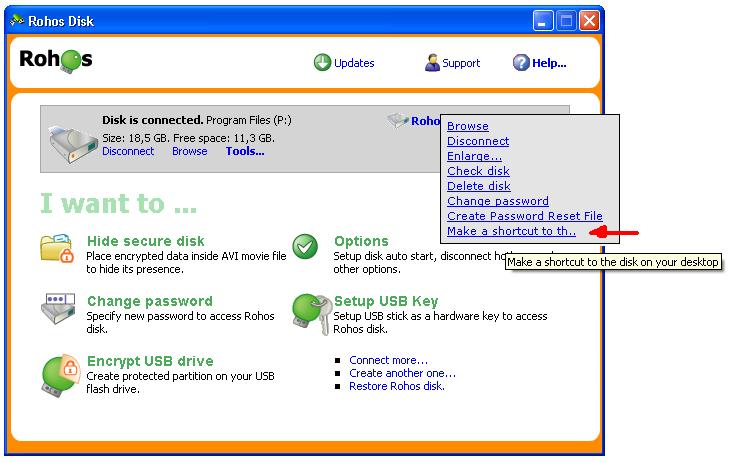
Rohos Disk Encryption allows creating a disk shortcuts on the desktop or any other place. When you double click this shortcut you will be prompted to enter a password to connect this Rohos disk.

On the screen shot you can see how to make disk shortcut for any Rohos disk using “Tools” menu:

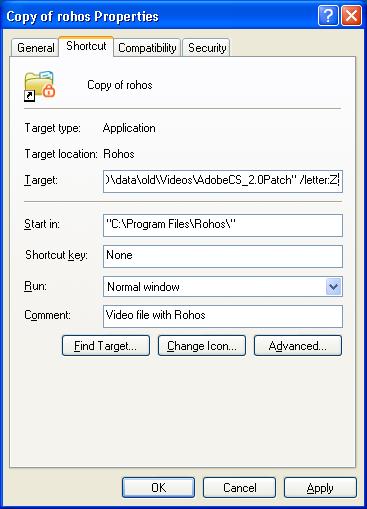
After you created disk shortcut, you may find it on the desktop and edit properties to specify the drive letter it will be connected with:

Automatic disk off upon user idle time

A user also can automate Rohos Disk security, in other words automatically disconnect it after 30 minutes of user’s inactivity.

Here is a BAT file for this:

schtasks.exe /create /tn Turn_Off_Rohos_Disk_On_Idle /tr “\”c:\program files\rohos\agent.exe\” /unmount:R:” /sc ONIDLE /i 15 /ru “System”

where :
“/tn Turn_Off_Rohos_Disk_On_Idle” task name
“/unmount:R:” – disk letter to disconnect
“/i 15” – inactivity timeout in minutes.
“/ru “System”” – user name that will be used to execute the command.

Login into Web based Remote Desktop with USB key

Rohos Logon Key for remote desktop Rohos Logon Key is the only software that allows to use USB flash drive as a 2-factor security key to access Windows Remote Desktop. It also supports Web Based remote desktop access with USB Key.
Read more

How to Repair Rohos Disk

The guide – How To Repair Rohos Disk – is a part of Rohos Disk Help files.  The Rohos guide will help you to: Create Password Reset File, Recover encrypted disk if you lost your password, Restore encrypted partition on a USB flash drive is case of data corruption, Check rohos disk for errors, recover files from corrupted Rohos disk.

Read more