
How to Repair Rohos Disk
The guide – How To Repair Rohos Disk – is a part of Rohos Disk Help files. The Rohos guide will help you to: Create Password Reset File, Recover encrypted disk if you lost your password, Restore encrypted partition on a USB flash drive is case of data corruption, Check rohos disk for errors, recover files from corrupted Rohos disk.
Create password reset file
(backup copy of cryptographic keys for disk encryption)
The program allows creating a password reset file for Rohos Disk. If you forget disk password you will be able to set new password and get access to the disk by means of this file. It makes no difference how many times the disk password has been changed, this file is created once.
How to create password reset file:
- Connect Rohos disk
- On the program’s main window click on Tools… and choose “Create password reset file” link
- You should specify path to disk image-file in opened dialog. If main disk is on, this path will be set automatically. You may also specify whatever disk image you want to have
- Then enter disk password and press Create backup
- Spare copy will be created
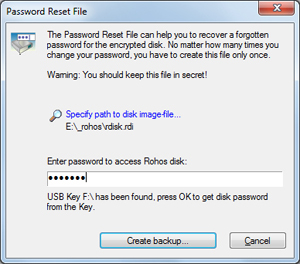
Warning: The backup file must be kept in secret otherwise another user can use it to access the encrypted disk.
Disk recovering
Warning: Make sure the disk is turned off before it’s recovered.
This function helps to recover Rohos disk or disk password.
How to use this function:
- Go to Restore disk link in Rohos Disk main window
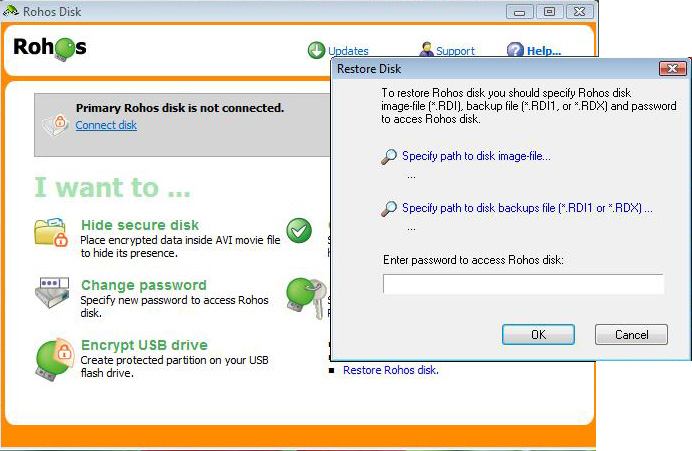
In opened dialog you should click on:
1. Specify path to disk backups file (*.RDI1 or *.RDX).
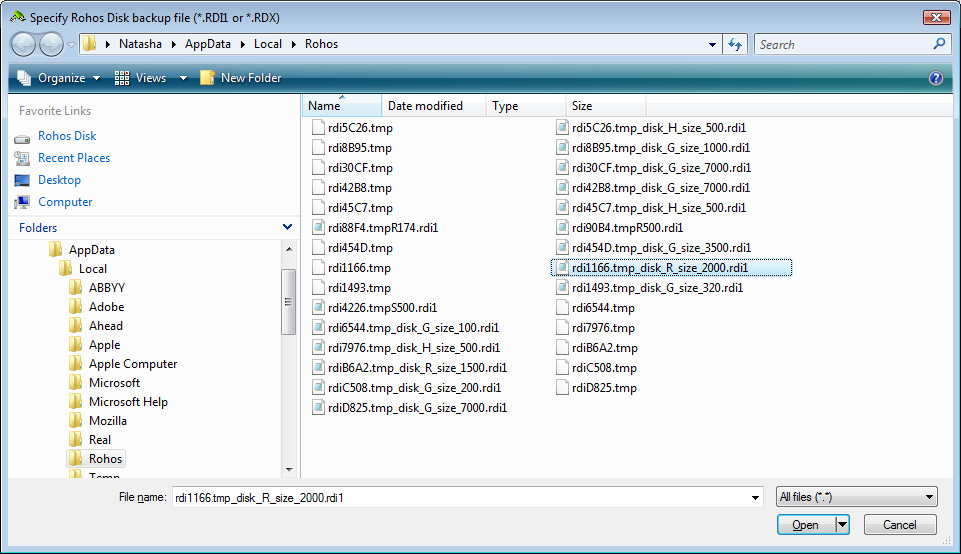
The path C:\Users\Account Name\AppData\Local\Rohos opens predefined folder . (only Account Name changes in the path indicated).
Path to disk backups file (*.RDX file – for disk password recovering, *.RDI1 file for disk recovering) RDX file must be created by user beforehand. RDI1 file is created automatically by program with disk image.
- the program automatically opens the folder that contains your backups file *.rdi1. It increase probability for success on condition that restoring back up file from the computer Rohos disk was created.
- click on appropriate *.rdi1 file and then Open. All *.rdi1 files in the backup folder indicate size inside the file name. It may help you to recognize your file to restore disk image.
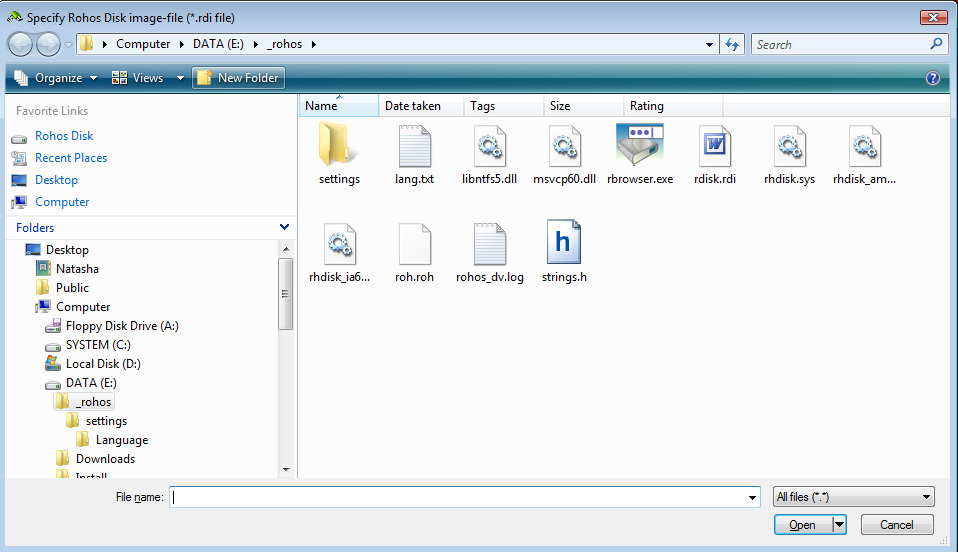
2. Specify path to disk image-file *.rdi.
- Enter in password input line the current disk password, if *.rdi1 file was chosen.
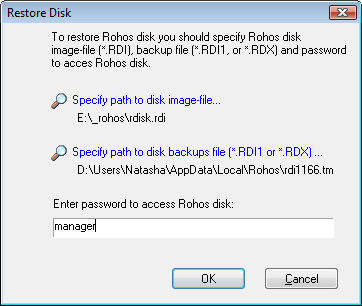
- Press OK – There will be an attempt to turn on the disk.
The disk can turn on but it won’t be formatted – DO NOT FORMAT IT because it can lead to data loss.
If disk is not formatted it means that you’ve used wrong *.RDX or *.RDI1 file from wrong file image.
If you recover main disk and it is still shown as unformatted:
– try to open favorite disk with “Connect more…” command.
Restoring Encrypted part on the USB flash drive
When you can’t find the disk’s image on the USB you should look for the Rohos image in the Folder F:\_rohos\ (where F is the letter of your USB flash drive). Usually disk image file looks like rdisk*rdi (its size is from 10 Mb to several Gbs). The Folder _rohos is hidden and in the file explorer it’s not seen. In order to open it you should:
- Open menu Start -> press Win + R
- Type in “F:\_rohos\ (or any other letter of your USB flash drive) and click OK
If you restore disk, then in the dialog box *RDI1, *RDX in the file name field you should choose F:\_rohos\ and then press Enter to be directed to the Folder.
Disk checking
Open Rohos Disk Encryption main window, connect your encrypted Rohos disk and click on Tools… and choose “Check disk” (as shown on the screen shot below). By means of this command disk will be checked for File-System errors. It helps in case disk doesn’t turn on or it is shown as unformatted. This command can be used only when the encrypted disk is on.
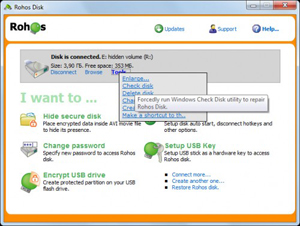
This command forcedly runs Windows Check Disk utility to repair Rohos Disk. Or it can be started manually:
- Start button -> Execute
- Enter command line “chkdsk.exe r: /f /x”, where R: your disk letter.
- After command execution there will be a window with black background. You need to wait till it is shut.
- After disk checking ends you may try to turn it on and turn it off again.
The disk is shown as unformatted
Warning: In case you used Rohos disk successfully beforehand and suddenly it is shown as unformatted then DO NOT FORMAT IT again.
Please note that Rohos Disk automatically format newly created encrypted disk into NTFS. In some cases that can’t be done so disk remains unformatted and you need to format it manually (right click on disk letter in ‘My Computer’ and choose ‘Format’).
If your Rohos disk suddenly is shown as unformatted we recommend to:
- Restart your computer and try to connect Rohos disk again.
- Use ‘Check disk’ command (Open Rohos Disk Encryption main window, connect your encrypted Rohos disk and click on Tools… and choose “Check disk”).
- If it doesn’t help then try to turn disk on with “Connect more…” command (you may use USB flash drive as a password)
- If it doesn’t help then use Recover disk dialog and one of the backup files or password reset file (RDI1, RDX)
- If it doesn’t help then use ‘How to recover corrupted encrypted disk’ section below:
How to recover files from corrupted encrypted disk
Sometimes data corruption on disk drives (specially on USB flash drives) may lead to data corruption within Rohos Disk container. As a result encrypted disk is visible as unformatted or some files/folders may disappear from it.
In this case we would recommend to use freeware PhotoRec utility:
“PhotoRec is file data recovery software designed to recover lost files including video, documents and archives from hard disks, CD-ROMs, and lost pictures (thus the Photo Recovery name) from digital camera memory. PhotoRec ignores the file system and goes after the underlying data, so it will still work even if your media’s file system has been severely damaged or reformatted. “
PhotoRec is able to work with virtual encrypted disk connected as disk letter:
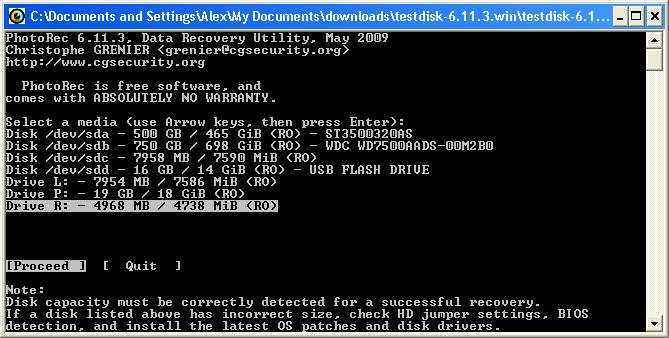
- PhotoRecis able to restore only Files types that are known to it.
- If the file is restored successfully it is stored as File1, File2 etc. So the previous file name will be lost.
- The same for the folders, it restores folder hierarchy but folder names will be Forlder1, Folder2, Folder3 etc.
In our experience it has successfully restored PDF, DOC, DOCX, XLS documents as well as many image formats.
You can use this utility to restore lost files from any media: encrypted disk of any manufacturer, USB flash drives, memory cards.
In case all the methods were tried but you still haven’t recover data you may use Data Recovery Assistance.