

Rohos Logon Key 2-FA software secures your Terminal Server and allows logging in into Remote Desktop by using a password + hardware USB token.
Rohos Logon Key supports a variety of authentication devices
including OTP technology and offers flexible 2-factor authentication
control.
- How it works
- 2-Factor authentication variety and supported devices
- How to configure USB tokens
- Remote Desktop connection with USB token
- Portable Rohos Logon Key
- Licensing
How it works
Rohos Logon Key
integrates into Windows Terminal Services login screen. It works by adding two-factor authentication level to existing authentication infrastructure. After applying 2-FA policy users can log into Remote Desktop session only by using an additional security device.
Remote Desktop access control benefits:
- Allows applying 2-factor authentication by user list or AD user group or only for Remote Desktop users.
- User must provide USB token each time for login
- Each generated Key is unique and cannot be duplicated by the user.
- USB Key can be configured on Terminal Server via Remote Desktop or on local Admin PC.
- You don’t need to install Rohos on a client PC/device you log in from.
- You can use PKCS#11 tokens of different vendors at the same time.
Higher security level with two-factor authentication variety:
- User login + USB key like SafeNet, eToken, iKey, ePass and any other PKCS#11 enabled.
- User login + USB flash drive.
- Only encrypted password is stored on USB token.
- Any type of One-Time-Password security: by Google Authenticator, YubiKey, SMS authentication or classic OTP tokens.
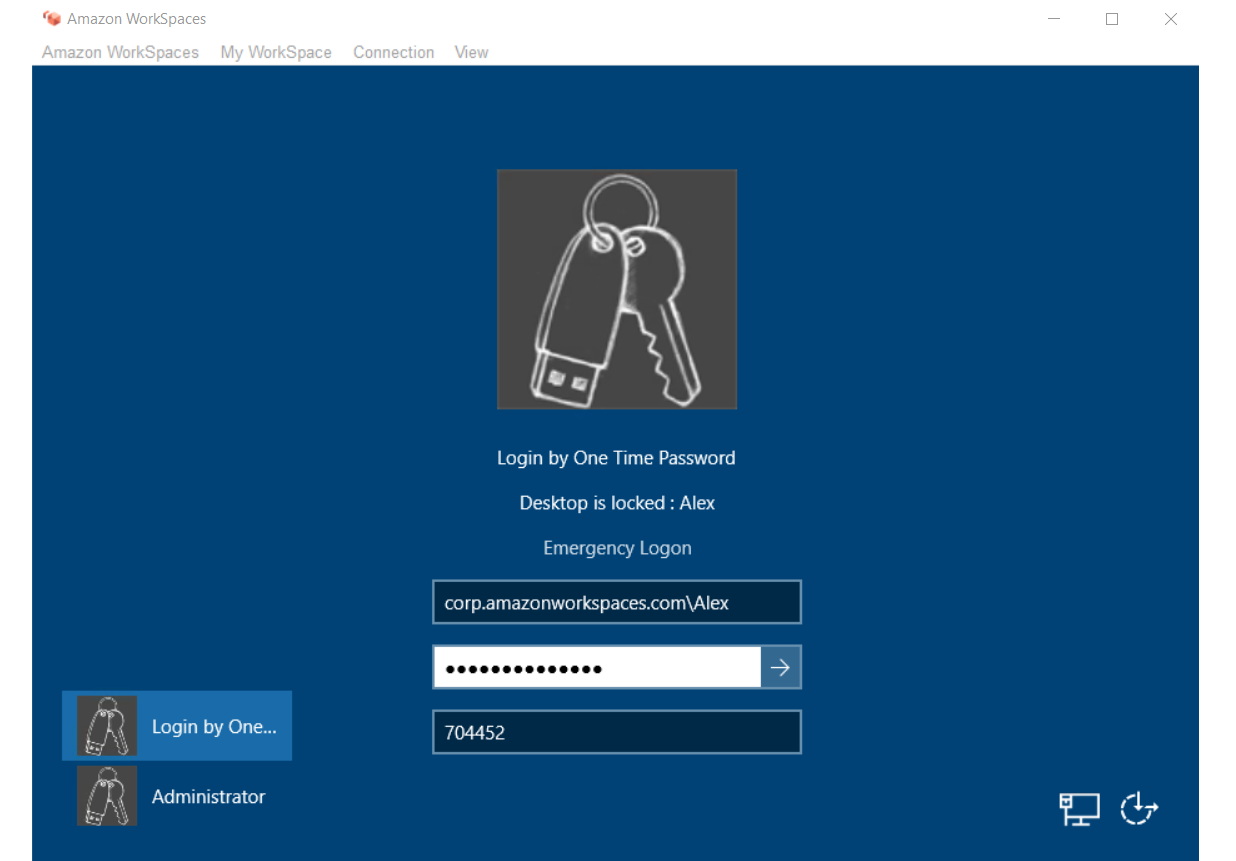
Read next to find out how to configure it.
2-Factor authentication variety and supported security devices
In order to try Remote Desktop login by USB key you can download 15-day trial version Rohos Logon Key. Download
You should have Windows 2003-2016 Server as your Terminal Server computer to try it.
Before you start please review the type of 2-factor authentication:
| The type of authentication into Terminal Server | The type of authentication device | Installing Rohos Logon Key on a client PC and/or Server: | |
| Client Windows XP-10 |
Terminal Server Windows 2003-2016 |
||
| 1) 2-factor authentication. Physical Key + Windows password (NLA). | USB tokens like eToken, iKey etc (PKCS#11) Smart-card JavaCard OTP, SMS, Yubikey or Google Auth. USB flash drive* |
– |
+ |
| 2) Just a Physical Key (or a key with PIN code) | USB flash drive USB tokens (PKCS#11) Java-Card, Mifare 1K |
+ |
+ |
| 3) Key is used only on the client side for fast and convenient login. Terminal Server does not check USB key. | Any type of Key |
+ |
– |
* If you are using USB flash drive as a key device: Administrator needs to install Rohos Management Tools or Rohos Logon key on a local PC.
* Setting up 2-FA by using One-Time-Password technology>
The list of supported security devices:
- Smart-card Java-Card, RFID card Mifare 1K/4K
- Any PKCS11 tokens: SafeNet eToken, Securetoken ST3/4, senseLock
trueToken, RuToken, uaToken, iKey, ePass, Crypto Identity. Different
token models/vendors can be used at the same time. - OTP tokens, Google Authenticator for example or YubiKey, authentication by using SMS.
- Regular USB Flash drives.
How to configure USB tokens
1. Install Rohos Logon Key on the Terminal Server
2. Install Rohos Management Tools or Rohos Logon key on administrator’s computer.
3. Configuring USB tokens for authentication :
On the MS RDC connection settings specify to redirect local USB Drive or Smart-card reader to your Remote Desktop.

On the Remote Desktop open Rohos Logon Key.
Click on “Setup USB Key” button. Redirected USB Key will be detected. Enter your Windows password and click Setup.

Launching Users and keys command, you can see the list of users whom you have prepared the keys.
– After that your USB Key is ready for login. You may close the TS session and try to log in with the USB Key.
(A note about USB flash drive: “Rohos Logon Key (RDC setup).exe” file will be copied on USB drive automatically after setup. This is a portable Rohos component that allows to use this key on any PC without installing Rohos Logon Key. Read below about using it.)
4. Apply 2-factor authentication
Open Rohos Logon Key > Options > Allow logging in only by using USB key → For listed users or for Remote Desktop login. It increases the security by disabling the authentication without USB key.
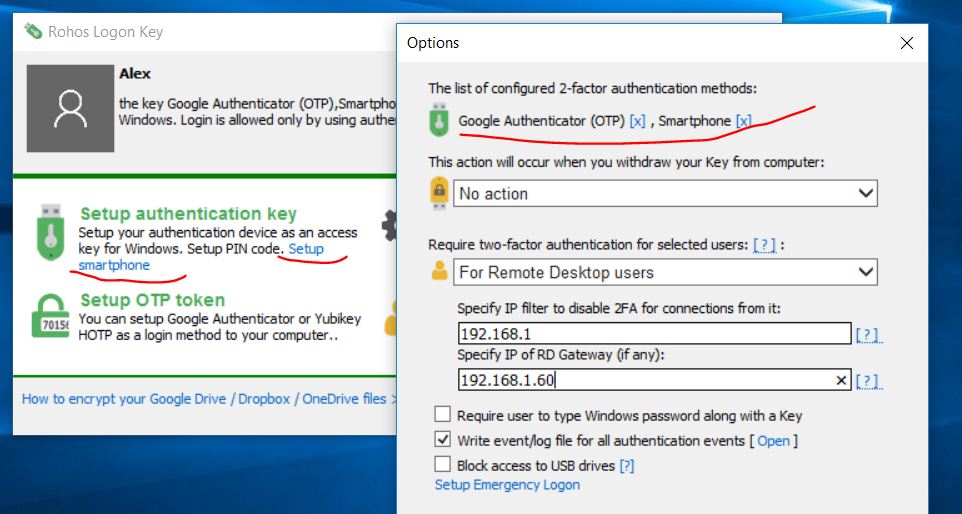
The possible choices are:
- None
All users will be able to login by manual password entry as well as by using USB Key. Is not recommended for Terminal server. - For any user
This is the same as previous option “Allow login only by USB Key”. All users will be required to use USB Key in order to login. - For listed users
Only users from a list will be required to use USB Key for login. Any other user will be able to login by a password. The list is created automatically when a USB Key is created for a user. Please look at Users and Keys dialog box chapter. - For ‘rohos’ user group in Active Directory
Each user from ‘rohos’ group will be forced to use USB Key authentication. Rohos will check the user for a ‘rohos’ group membership and will allow logging in by password if the user does not belong to a ‘rohos’ group.
Please note: ‘rohos’ user group should be created by AD Administrator. - For Remote desktop login
Local users can log in with and without USB key. Remote login will be possible only with USB key. - For Remote desktop login outside LAN
Remote desktop login inside LAN will be possible with and without USB key. Only users, who came through the dial-up, DSL connection, and from other networks, will be ought to use USB keys.
Remote Desktop connection by USB token
Ensure you have installed Rohos Logon Key on the client PC or launched Rohos Logon key portable app from USB flash drive.
Remote Desktop Connection Credential prompt
User needs to provide a valid login and password on this step. The authentication key can also be used here (it should be configured only with Rohos USB Key Manager).

Rohos Logon Key check 2FA authentication policy and verify connected authentication Key while connecting to Remote Desktop:

Portable Rohos Logon Key
If you have decided to use USB flash drive and first variant of authentication. You don’t need to install Rohos Logon key on every workstation. Only this portable application needs to be installed for free. Sometimes it allows you even to configure new USB keys from such workstation. But in some systems it is not possible, so, you have to install the Rohos Logon key on both computers to create a new key.
Download portable Rohos Logon key
You can also find it in the USB key manager application there is an additional option, that provides to copy Rohos Remote Login to USB-drive. Use the Remote Desktop button in USB key manager for it.

Read more about USB key manager
A user should run once Logon Key (RDP setup) application on any client PC with Windows 7/8. After that he must launch Remote Desktop application.

Licenses of Rohos Logon Key application for Remote desktop connection
- Rohos Server license is required for each Terminal Server PC with Rohos Logon Key, Windows 2003, 2008, 2012 with RDC access.
- For workstations with RDC access (other Windows versions) – PRO license.
- If you are installing Rohos Logon Key on the local PCs (for 2/3 authentication type) – you need a personal license for each PC.