
 Rohos Disk program creates hidden and password protected encrypted partitions on your PC or USB flash drive. You can lock access to your applications, to hide folders. It is a strong on-fly disk encryption tool.
Today we would like to announce Rohos Disk’s new feature It automatically locks Rohos disk after a defined timeout. You can enable this security option to protect your sensitive data on Rohos Disk. Enforce password security after the grace period. If you often use Sleep or Hibernate mode to save the power of your computer or laptop this feature is very useful. After waking up from Sleep or Hibernate Rohos Disk will ask you to enter the password or to plug in the USB key with the password. Auto-lock/unlock solution for unattended computers. Sometimes you cannot manage to keep an eye on everything that’s why we add the Timeout option.
Assists in compliance with federal regulations such as HIPAA, Sarbanes-Oxley, Gramm-Leach-Bliley, and FISMA.
How it works in other encryption software
There are many disk encryption tools (TrueCrypt, OTFE) over the web with the ‘disconnect by the timeout‘ feature. It may work in a few plain and simple ways:
- If there is no disk activity for a long time – it will be disconnected forcibly.
- If there is no user activity for a long time – it will disconnect the disk forcibly.
But this may lead to data loss because the disk will be disconnected forcibly.
How it works in Rohos Disk Encryption
Rohos Disk uses the same principle but in a more elegant way.
- Once you paused your PC or closed the lid of the laptop – your virtual encrypted disk is got locked.
- The passphrase window will appear after you resume your PC or open the laptop. You’ll be able to enter a password or to insert your secure token within 25 seconds. If the password wasn’t entered the disk is dismounting automatically.
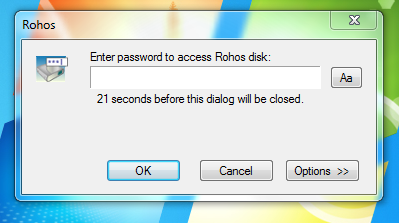
- Your encrypted information, Internet applications, and hidden folders will remain out of reach for other people. Private data became inaccessible.
How to enable this feature:
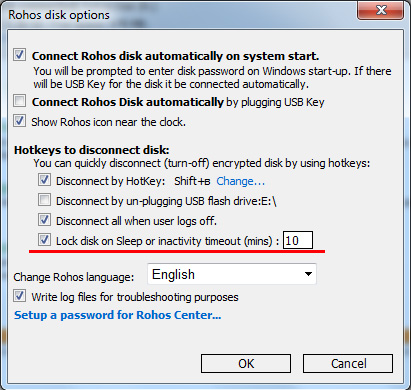
Open Rohos Disk> Options > check on “Re-authenticate Rohos disk after Windows resume”
Your security advantages with this feature:
- Just close your laptop – to lock your Encrypted Disk
- When you use the Sleep feature in Windows – you are locking your private disk automatically.
- The opened Applications and Documents from the disk remain open but in order to continue to work with it – you need to enter the disk password again.
Download Rohos Disk Encryption (Shareware-30 days)