How to uninstall Rohos Logon key?
In order to uninstall Rohos Logon Key (2.* versions) you should:
- Click on Rohos icon in the status area and click Quit if this is possible.
- Download latest – Rohos Logon Key for Mac OS X – open rohos_logon.zip, run “Uninstall.app” and follow instructions.
How to uninstall Rohos Logon if you can not login into your Mac for some reason? (Mac OS 10.9)
If you wish to completely uninstall the program but Mac is locked and you can’t log in to perform usual uninstall please, do the following in Single User Mode:
- Restart your Mac
- Immediately press and hold Command key (Apple) and S key ( Command + S means choosing single-user mode start-up)
- Wait untill command line prompt will appear.
- type in “mount -uw /” and press Enter
- type “rm /var/db/auth.db” and press Enter
- type “reboot” and press Enter.
Your Mac will startup now with a typical login window and you can login by password.
How to uninstall Rohos Logon if you can not login into your Mac for some reason? (Mac OS X 10.6 - 10.8)
If you wish to completely uninstall the program but Mac is locked and you can’t log in to perform usual uninstall please, do the following in Single User Mode:
- Restart your Mac
- Immediately press and hold Command key (Apple) and S key ( Command + S means choosing single-user mode start-up)
- Wait untill command line prompt will appear.
- type in “mount -uw /”
- Press Enter
- type “sudo pico /etc/authorization”
Press ctrl + v to navigate to the bottom. Then look for
“system.login.console” group.A few lines below this key, you should replace the line
“rohos:test” :with“loginwindow:login” :For example you will see:mechanisms
rohos:test
builtin:smartcard-sniffer,privileged
…By using arrow buttons, put cursor to the beginning of the “rohos:test” and edit it.
Then look below for “rules” section > “authenticate” group, replace:
“rohos:authenticate” :
with
“builtin:login” :
Press Ctrl + X for exit, type “y” and then press Enter to save changes.
The editor will be closed and your command line appear again. - type in – “reboot” and Press Enter.
How to find Rohos log file
Please note Rohos Logon doesn’t write its log into Console by default. First you need to enable “write log” in Preferences and then reproduce the issue in order to log them.
In order to find log strings:
- Open up Console (/Applications/Utilities/Console.app)
- Select system.log
- Select & Copy Rohos log strings (prefixed with ‘Rohos logon’ or ‘SecurityAgent’)
To select and copy multiple strings:
– click on 1st string,
– scroll to last string
– shift + click on last string and copy them (apple + c).
If it says about insufficient permissions
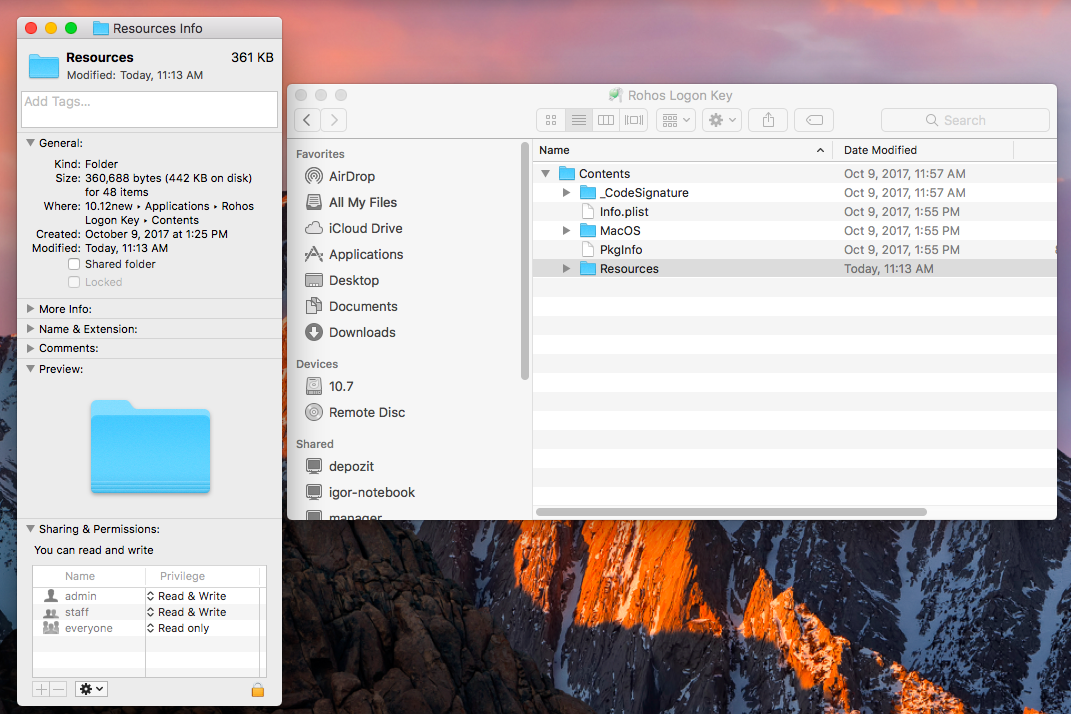
After installing the Rohos Logon key program, do the following:
Open the Finder, find Rohos Logon key.
Right-click on it and select Show package contents.
Find the Resources folder and right-click on it. Select the command Get info.
In the window that appears, in the Sharing & Permissions group, set read and write for all users except Everyone.
Try to set up the key again and enter with it.