

Summary: There are about a dozen similar disk encryption programs on the web, even free. But the Rohos Disk program offers a few unique and really useful features and tools.
One step to create an encrypted disk
Unique feature: After the program has been installed, Rohos Wizard is analyzing the configuration of the computer and selecting the size of the disk and the other properties that will fit your system. All you need to do in order to start the Rohos disk encryption is just to set the disk access password and click Create disk.
The other programs lead the user through all possible settings, making them wonder what option to choose. It sometimes causes difficulties because there is no default value. You can’t just press Next. You will unavoidably have to specify:
- Disk size
- A path for disk image storing
- Disk password
Some disk encryption software also requires specifying Encryption (ciphering) algorithm, type of the file system for the virtual disk, and the other things.
One step to Hide folder
You may keep your folders or Internet applications’ data secure so anyone else won’t have the ability to access them and explore your privacy anymore.
An application profile folder will be physically moved into an encrypted Rohos disk by just selecting the one you wish to hide/password protect in the Hide folder window.
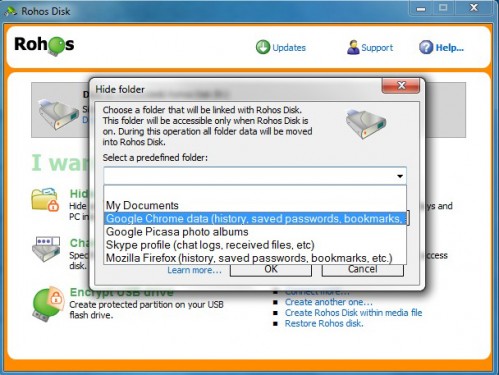
Then it will be replaced with a shortcut. This will allow the folder to get opened and the application to work.
Security benefits with the “Hide Folder” feature
- Allows encrypting any folder on the computer like My Documents, My Pictures, etc.
- Encrypt and protect Google Chrome profile: history, favorites, form data, credit card number, saved passwords, cookies, etc.
- Password protects any Application folder within C:\Program Files\
- Encrypt and hide your Skype profile with chat history, received files, contacts, Skype password
- Encrypt Mozilla Firefox and Opera profiles.
- Save your confidential files on the virtual disk
One Favorite secret disk for quick access
Unique feature: The Favorite disk can be quickly connected and disconnected by pressing one button. It is very easy and convenient. The User should make minimal effort to start working with the confidential data!
All the similar programs let the user create several virtual encrypted disks. Actually, it’s convenient you have 2 or 3 disks for different purposes. But in fact, 90% of users create just one encrypted disk. But each time they need to specify which one to mount/open to work with it.
Note: The Rohos Disk program is originally intended for working with only one disk. At the same time, there is a possibility to create additional encrypted partitions. They can be connected by means of a shortcut or by specifying the path to the disk image. This option was created for advanced users.
Disk icon is in each application including MS Office!
Unique feature: The Rohos secure disk icon is now available via:
- Save/Open dialogue windows in all Windows applications
- The Send… context menu in Explorer
- MS Office applications Save as/Open dialogue window
An example:
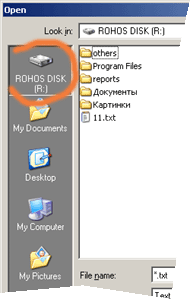
No one similar program offers this feature.
Turn-On Notifications
When you turn on/ off the secret disk, you may see the notifications from Rohos Disk in the clock area they show that your personal disk appears in the system by your instructions, and becomes inaccessible (disappears) at the end of the computer run.
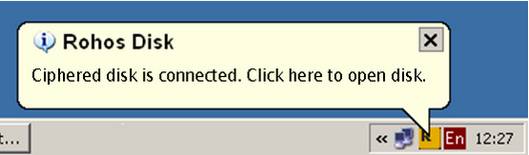
Your Autonomous secret disk
Unique feature: If you set up USB Key as an access key for Rohos Disk then you don’t need to manually enter the disk password at the beginning and close the disk when you shut down the computer or log off. All are done automatically when you insert a USB Key into the computer and close Windows.
With any similar software, you will need to enter the password each time you want to work with the secret disk. And to keep in mind when it’s time to close it.
Built-in File-shredder
Rohos Disk contains a File-shredder, which moves your files and folders to your secret Rohos disk. After the files are moved they’re erased by the File-shredder and deleted.
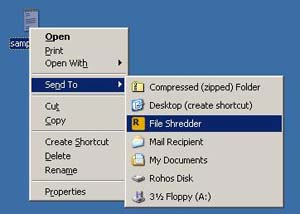
Portable security
Unique feature: Rohos Disk program is able to protect a part of your USB flash drive or portable USB hard-drive. You can open and edit data on your encrypted secret partition on any computer without administrative rights on a guest PC!
Additional Rohos Disk tools:
Many similar disk encryption software lacks the useful tools as we have in Rohos Disk:
- Ability to verify Encrypted Partition for disk errors.
- Disk resize. Low free space? Just increase encrypted partition.
- Data Steganography – disk encrypted data may be kept in AVI, MP3, or any other media file.
- The disk image file may be protected from deletion.
- Password recovery file which prevents the forgotten password of the Rohos disk.
- Have a USB Key to access one or many secured Rohos volumes. As a key, you may use any USB flash drive, YubiKey OTP token, Aladdin eToken, Swekey, and other USB dongles.
Order your copy –