
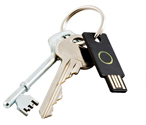
 Briefly: The popular YubiKey OTP authentication device can be used in Rohos Logon Key as an access Key for your Windows/Mac computer.
Security advantages with Rohos Logon Key and YubiKey:
- Secure authentication in Windows XP/Vista/7/8
- Replaces weak password based login with a hardware key
- Allows to use big Windows password, without the need for remembering it
- The system is password protected but you don’t need to enter it manually each time you log in or unlock Window.
- Optional strong Two-factor authentication. Yubikey + your Windows password.
- Login with YubiKey is fully automatic and fast!
- Automatically locks your desktop when Yubikey is unplugged.
- Cross-platform: Use a single YubiKey to log into Windows and Mac
- Windows is protected even in Safe Mode
- Secure login into Windows remote desktop by Windows 2008/2012
- Supports any type of Yubikey and configurations: OTP/ HOTP, Offline or Online validation.
Windows logon with YubiKey
Allows to access Windows in a secure way by YubiKey replacing the regular password based login. All that the user should do is to insert YubiKey into the USB port and press it.
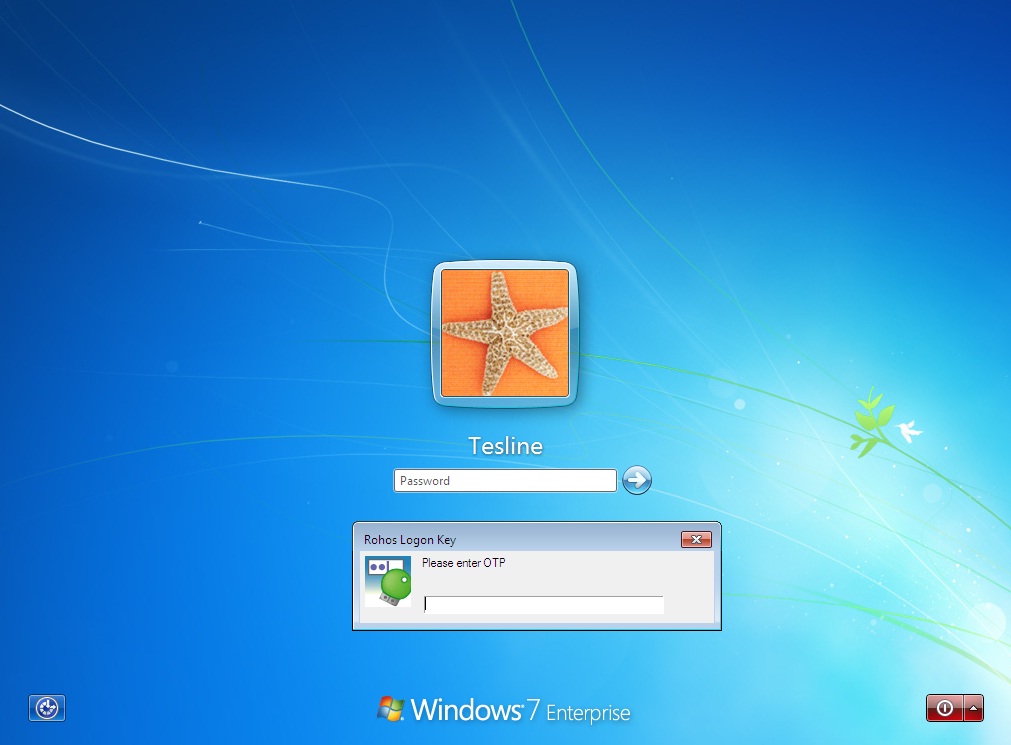
Rohos Logon Key is the only program that fully works with any Windows, Mac OS X and supports Windows remote desktop authentication by using YubiKey.
Setting-up YubiKey in Rohos Logon Key:
- First you have to install Rohos Logon Key
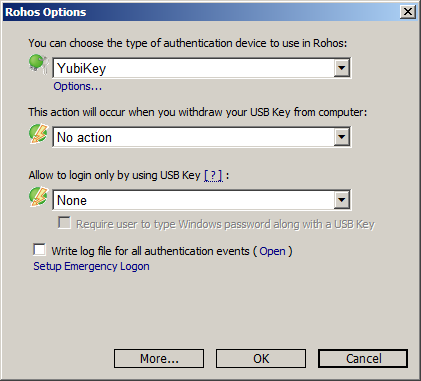
- In the main window open “Options” and choose YubiKey as USB Key device type for Rohos Logon:
-
In this dialog choose YubiKey in USB Key device type list.
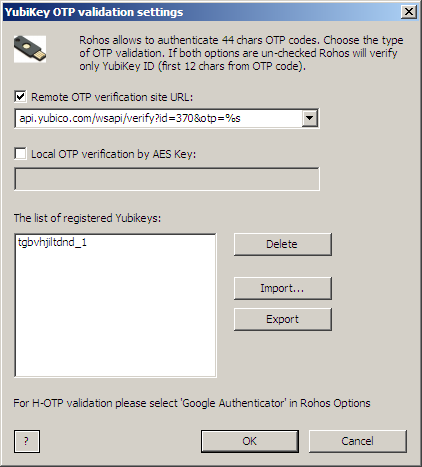
- Here, click “YubiKey options…” link to set up OTP validation method. Please note by default Rohos Logon does not validate OTP codes online on yubico.com .
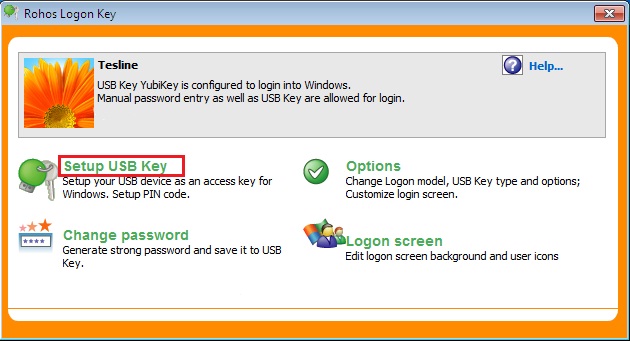
Go back to main Rohos Logon window and click “Set up USB Key”:
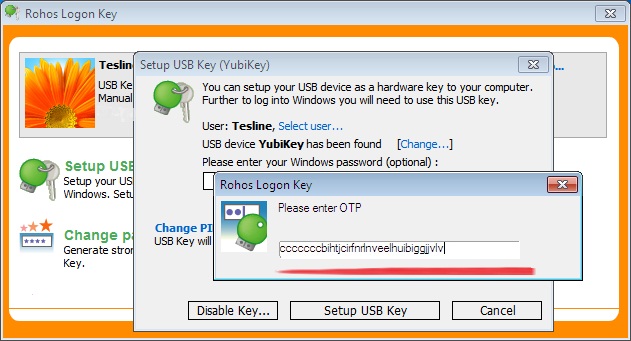
After you enter your current user password > Click OK and Rohos Logon will ask you to touch YubiKey. Now you can use Yubikey for Windows login and desktop unlock.
 For non-English users it’s important to know that during generating and typing YubiKey’s OTP the current system language is used. So make sure that during the Rohos Logon setup process and upon login the language that is used, e.g. Russian, German, Spanish, etc. remains the same. Otherwise the program displays the error: “The given USB key has not been configured for this computer”.
Yubikey security in Rohos:
Rohos Logon Key supports any model of YubiKey, including Neo model. Static or dynamic OTP mode and HOTP codes are supported.
-
During USB Key setup the program remembers YubiKey IDs (first 12 chars) and allows only these Ids for login.
-
OTP validation by a single AES key is also supported.
-
If you provides your Windows password during Yubikey setup – Rohos Logon saves it in encrypted form in Windows registry.
-
During accepting a string from YubiKey Rohos Logon allows only 4 sec to enter it, or it will deny it thinking that user enters it manually (Copy/Paste disabled also)
-
The program allows to set up 2 and more YubiKeys for login into the same PC
-
If you forget or lose YubiKey you can use Emergency Login
Setup Yubikey H-OTP for Windows login
Please read more in Google Authenticator support page.
Windows Remote Desktop authentication
Rohos Logon supports YubiKey OTP security and offers a flexible hardware based authentication for both Windows local login and Remote Desktop:
- Supports both OTP verifications methods: local – by encryption OTP ( AES key should be provided) and remote – by validating OTP on any Yubikey enabled web site (according to Yubico validation API).
- Remote Desktop Logon.
Setup Yubikey for strong two-factor authentication
-
- Open Rohos Logon Key > Options :
– Check Login by USB Key only option
– Check Require user to type Windows password along with a USB Key . - Rohos main window > Setup USB key
– Click Setup Emergency Login to be able access your PC in case of USB Key lost.
- Open Rohos Logon Key > Options :
- On the Login Screen:- On the logon screen connect USB Key (enter OTP if this is a Yubikey

– Rohos logon icon automatically gets selected (with user name is filled in already)
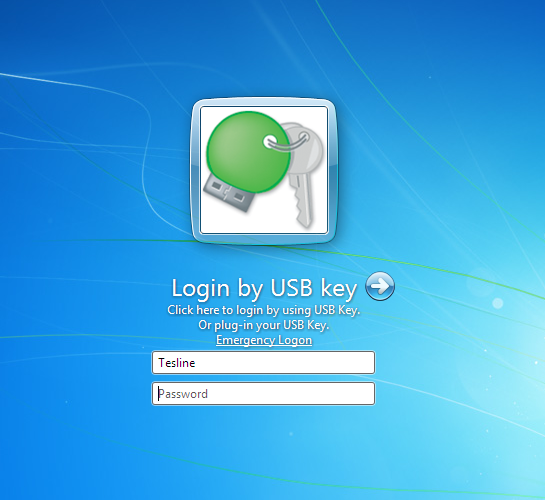
– type in your password to Windows and hit Enter. - In order to login into Windows you need to provide physical USB Key and your Windows password simultaneously. Both credentials and OTP token are requested.
System requirements
In order to run Rohos Logon properly the requirements are the following:
- Any Windows version from 2000 (x86, x64 editions)
or Mac OS X 10.6 – 10.9 - 2Mb free space on disk
- Admin’s privileges to install the program
- Yubikey 1.0, 2.0 (with 44 chars OTP, where first 12 chars is Yubikey ID), Neo, Nano.
Videos:
+ Windows login with Yubikey
+ Windows Remote Desktop login with Yubikey
Library:
Yubikey 2.0 Setup Dynamic configuration for Rohos Logon with static AES
Windows login by using OTP codes with Google Authenticator.