
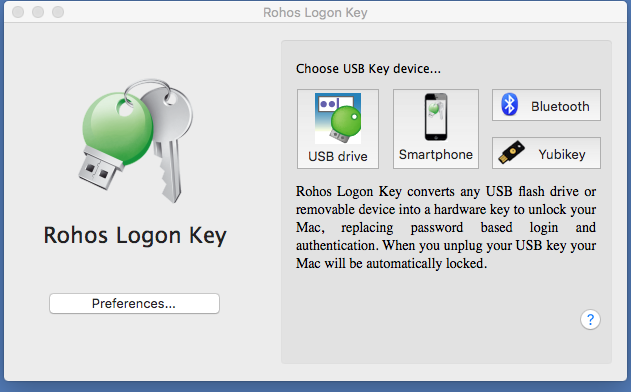
 Turns any USB drive into a security key for your Mac, allowing secure Mac login, keychain access and desktop unlock with a USB key. Unlocking your Mac with a key is fully automatic and fast!
A fully functional 15-day trial
Your security benefits:
- Replaces weak password-based login with a hardware Security Key: USB flash drive, Smartphone, YubiKey or any Bluetooth device.
- Your Mac is protected, but you don’t need to enter your password manually each time you unlock your Mac or system preferences.
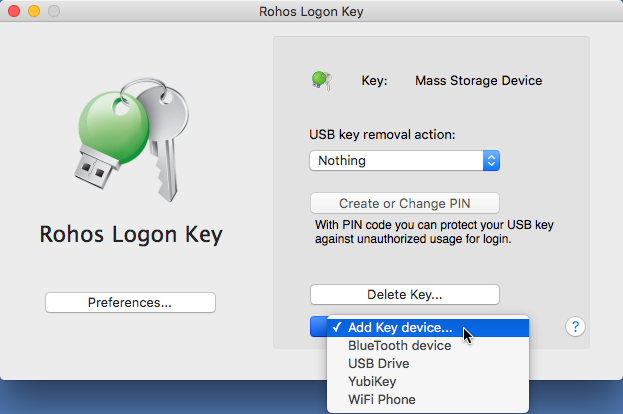
- Automatically lock your Mac screen when the key is unplugged
- Two-factor authentication: PIN code + USB Key
- Use the same key for Windows and Mac computers
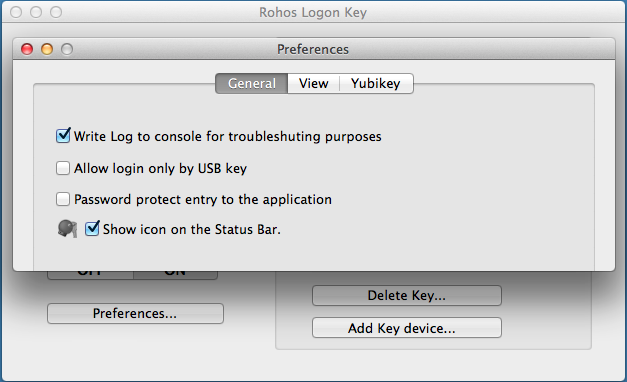
- Regular password-based login may be prohibited with the option “Allow logging in only by using USB Key”.
- The system keychain can also be unlocked using a USB key.
- New: Use iPhone or Android phone to unlock your Mac in a secure and even more convenient way…
- Compatible with Mac OS X Sierra “Auto Unlock” feature. Use your Apple Watch to authenticate and auto lock your mac.
Authentication Key security
Rohos Logon can use any USB flash drive or Smartphone as a security key for your Mac.
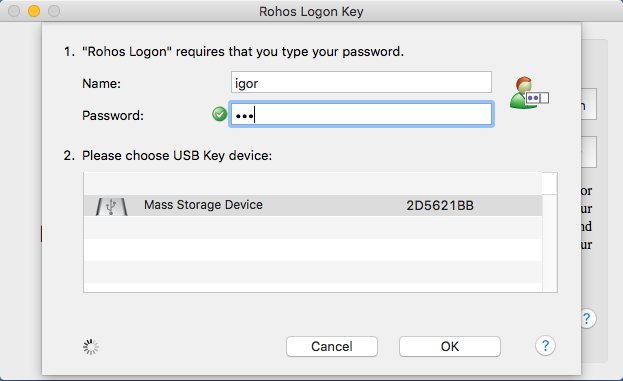
- Rohos uses the onboard serial number of the USB flash drive as a security token. Rohos does not store any information on the USB flash drive, thus allowing to use of even non-Mac compatible USB sticks.
- Military-grade encryption is used to encrypt authentication data sent over Bluetooth/Wi-Fi to unlock your Mac.
- Protect your key with a PIN code to prevent unauthorized login with your USB key or unlocking the system keychain.
- Review Rohos Logon Key mobile app source code with authentication protocol >
Two-factor authentication with PIN code
With a PIN code, you protect the USB key and prevent the third party from logging in to your Mac without your permission. After you plug in the USB key, Rohos Logon will ask the user to enter the PIN in order to log in or unlock your Mac.
PIN code is secure and convenient because:
- The user gets only 3 attempts to enter a valid PIN.
- Thus, the PIN can be a short password like “135”
- The user will need to enter it each time to log in to a Mac or unlock the screen with a USB key.
After the third wrong PIN attempt, the USB key is blocked and cannot be used for Mac authentication. To enable this key again, the user must change the PIN.
How Rohos Logon works
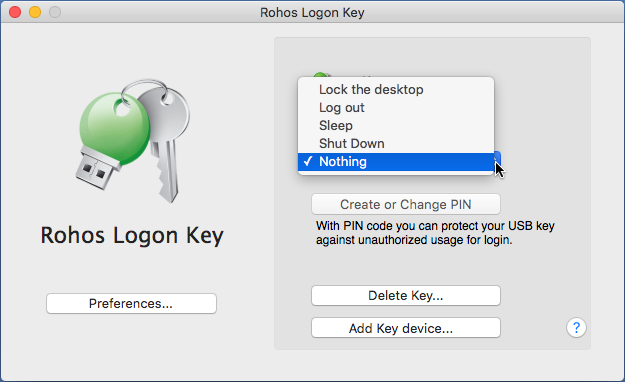
Rohos Logon remembers the specific USB flash drive that the user has chosen for protection. From the moment that this USB drive is disconnected from the Mac, Rohos Logon will immediately lock the Mac desktop or do nothing.
Depending on the system option “Require password to wake this computer from sleep or screen saver” Rohos Logon will use the system screensaver to lock your Mac or its own lock window.
The Rohos Logon user interface allows you to quickly turn USB key protection ON or OFF.
To uninstall the program, open the Rohos Logon Key zip file and double-click on the UninstallRohosLogon app.
Wireless Key for Mac authentication
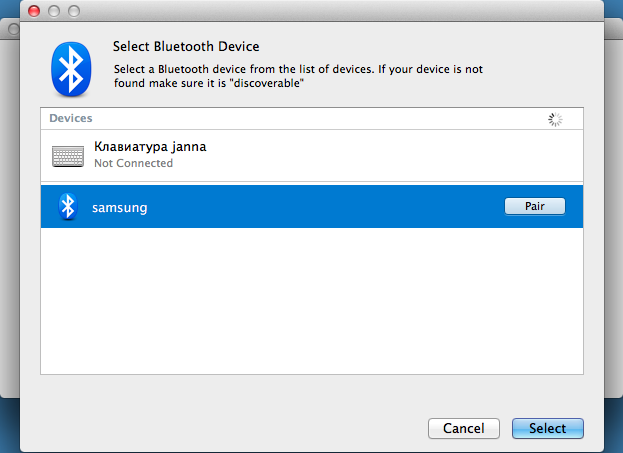
Using the Bluetooth feature on your mobile phone is a convenient and secure means to lock your Mac:
- When you come near to your Mac, Rohos detects your phone using Bluetooth and unlocks the screen
- When you step away from the Mac, Rohos loses the connection to your phone and locks your Mac automatically.
- You don’t need to connect or disconnect a USB device to your Mac computer.
As a USB key you can use any:
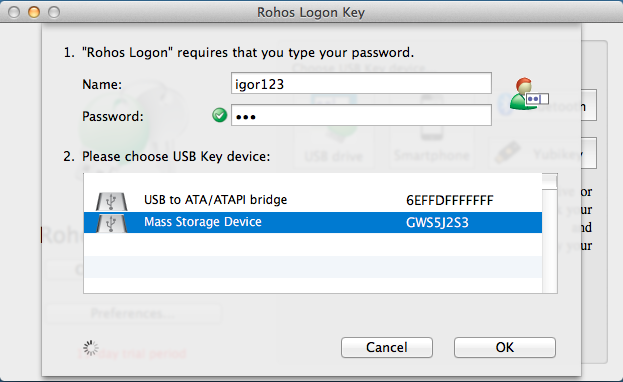
- Regular USB flash drive;
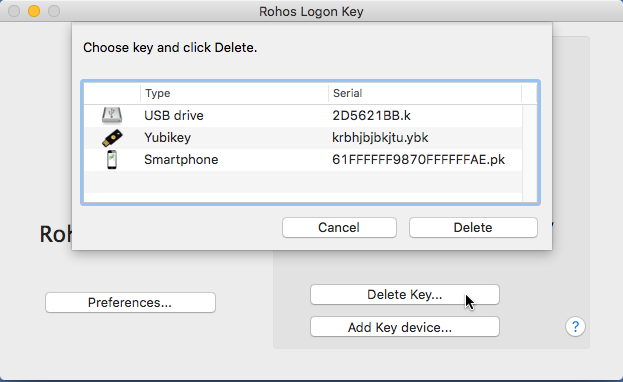
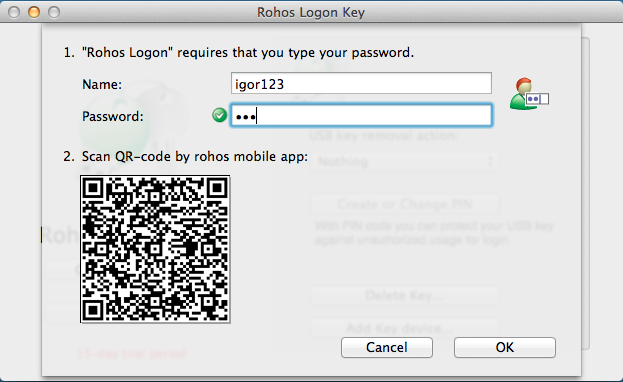
- Bluetooth-enabled mobile device: iPhone / Android or Apple Watch;
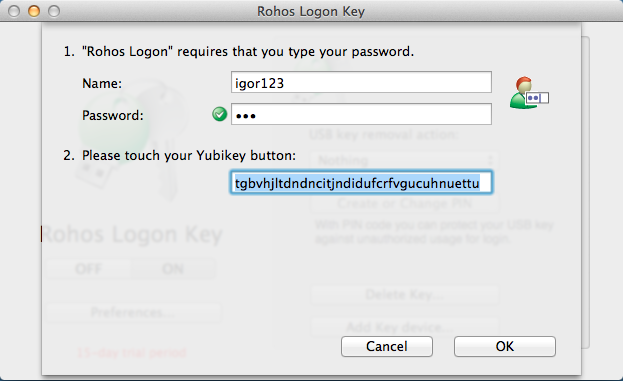
- YubiKey OTP token.
- New: iPhone or Android phone with authentication over WiFi signal
Screenshots
The Latest news:
- Rohos Logon Key for Mac OS X 12 Monterey Nov 24
- Rohos Logon Key for Mac OS Catalina Jan 20
- Rohos Logon Key is compatible with macOS Mojave Dec 17
- macOS High Sierra support in Rohos Logon Key Feb 09
- Rohos Logon Key for Mac OS Sierra Dec 08
Info
 Setting up USB key for secure Mac login (tutorial)
Known issues:
1. What if I lost my key? How to log in?
a) by default, the program doesn’t disable regular password-based login b) make an additional Key/Phone. Find Rohos icon in the status area and choose “Add USB Key…” command, c) see troubleshooting page on how to remove Rohos in single-user mode.
2. Since Mac OS X 10.10 when using FileVault – after each macOS startup you will need to enter your account password manually. The authentication key is not working in the boot stage.