
Here you will find information about various devices and equipment that may be used in Rohos software for authentication purposes. Rohos software uses different types of hardware tokens to store passwords or login profiles. Some of them support PIN codes for two-factor authentication. All Rohos data are stored on a device memory in encrypted form.
The list of supported tokens:
- USB flash drives
- HSM tokens, PKCS#11 compliant
- Smart cards
- Bluetooth proximity
- One-Time-Password tokens
- RFID and NFC wireless tags, MiFare cards
- FIDO U2F security keys
- Smartphone with Rohos Logon Key app
- Biometrics
- Custom devices
- Using different devices and technologies with Rohos applications
Supported Rohos Logon Key (Windows and Mac) and Rohos Disk Encryption. After the USB key has been configured it still may be used as a storage disk.
+ Supports PIN code for 2-factor authentication with limited fail-attempts before lock (3)
+ Configuration creates encrypted login profiles in \_rohos\roh.roh file
+ By default password is not stored on the USB drive in plain form.
Also, including any USB storage device that has its own drive letter in Windows:
- Fingerprint & Biometric enabled USB flash drives are also supported
- Memory cards (like SD/MMC) via card readers
- Any MP3 player like iPod, Sony
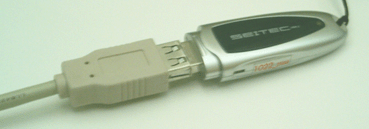
Also USB Flash Drive with Hardware Encryption. Rohos may use the authentication panel of any Encrypted USB drive to authenticate into Windows:
- IronKey
- Kanguru Defender
- Kingston DataTreveler secure and others
Tested devices: Apacer, LG, Lexar, Transcend, TakeMS, SanDisk, SD memory cards, IronKey, Kaguru Defender, Kingston SecureVault.
USB HSM tokens, PKCS#11 compliant
Supported in Rohos Logon Key (Windows) and Rohos Disk Encryption. In general, any PKCS11-enabled token may be used in Rohos products.
+ Supports PIN code for 2-factor authentication with security provided by the token (number of failed attempts, unblocking features, change PIN)
+ Configuration creates 1 or 2 data blocks in private memory (up to 10 kb)
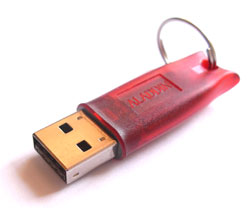
Tested tokens: Aladdin eToken PRO, ruToken, uaToken, Securetoken ST2/ST3, Futako HiToken, ePass, iKey ***, Crypto Identity 5, CrypToken, SenseLock, TrueToken, Feitian, Longmai mToken K3 and others.
See the note below on how to use any PKCS11 token in Rohos in addition to the one listed in the Rohos setup window.
A few notes about PKCS#11 token initialization:
There are HSM tokens like IKey 1000 that require initialization before usage.
- Install “IKey 1000 Authentication Solution 4.0”, which includes the driver and also PKCS#11 library k1pk112.dll (required by Rohos)
- Before token usage – please initialize iKey with “iKey Token Utility”.
- Initialize PKI storage (default value 648 bytes is ok) and User PIN (4-8 chars)
Read more about initializing of iKey…
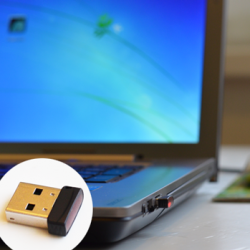
Rohos Logon Key and Rohos Disk supports smart-card with PKCS#11 and Java Cards or the following models:
- SC25J10 Smart Card.
- HiCOS PKI smart card Powered by Futako Ltd.
- Java Cards J2Axxx or J3Axxx.
- Athena USB Cryptocard
Bluetooth-enabled mobiles and BLE beacons
Any smartphone or Bluetooth-enabled device may be used as a wireless authentication key to unlock your computer or notebook. Supported in Rohos Logon Key (Windows and Mac).
Learn more in the article: How to use Bluetooth mobile to lock/unlock Windows computer.
+ PIN code is supported in the Mac version only
+ Configuration creates AES256 encrypted login profiles in the Computer disk
+ Authentication security based on the uniqueness of the Bluetooth device’s MAC address and PIN code.
Tested devices: A computer or notebook with MS Bluetooth stack or Mac OS X.
In experimental mode Rohos also support BLE beacons: kontakt.io
One-Time-Password OATH code, Google Authenticator, Microsoft Auth.
One-Time-Password OATH-compliant codes produced by Google Authenticator, Microsoft Authenticator , or YubiKey are supported in Rohos Logon Key (Windows and Mac).
+ Configuration creates encrypted login profiles in local Computer or LDAP folder.
+ Security is based on OTP validation via the manufacturer’s online API (requires internet) or HOTP/TOTP secret key stoked locally or in the AD domain.
Learn more on how to use YubiKey for Windows Logon and release notes and 2FA set up with Google Auth / SMS authentication.
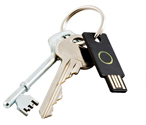
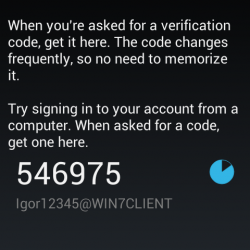
Tested devices: YubiKey (in static and dynamic OTP mode), Google Authenticator, Feitian OTP generators;
How to use Google Authenticator with YubiKey
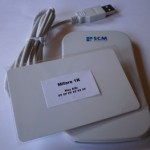
RFID wireless tags, NFC Cards and Readers and MiFare 1K /4K cards.
Rohos Logon Key (Windows) and Rohos Disk support the following NFC, RFID readers with MiFare 1K / 4K support:
- ACS ACR122 and ACR128 NFC readers
- SCM SCL010, SCL011G and SCL3711 RFID readers
- Feitian, Longmai mNFC RFID readers
- Easident FS-2044 RFID reader (only with RFID tag EM4100)
- CR10MW (betta release)
- MADA Legic RFID reader/writer with Legic Prime tags
- pcProx reader by RFIDeas with a variety of 125 kHz cards supported: HidProx, Indala, EM410x, HiTag etc. For example WaveID (RDR-6082XX)
- KCY 125 Khz
- Siemens SIMATIC (RF200 / RF1000)
- Elatec TWN4 / MultiTech 2 BLE/USB
Also, Rohos Logon Key supports a Wireless PC Lock – USB receiver, and wireless tag.
Rohos Logon Key features for RFID tags:
+ PIN code is supported natively only in MiFare 1K / 4K Authentication Key A.
+ For Easident FS-2044 RFID readers and UID-only cards such as HidProx, Indala, EM, Rohos creates an encrypted login profile in the local computer registry (or in the LDAP database in Active Directory). AES-256 encrypts data with a user-defined PIN code (or default PIN code).
+ In many cases, Windows Active Directory authentication with RFID tags is possible. 2FA Authentication for Remote Desktop is possible by installing Rohos Logon portable setup package on client computer.
Please read more about MIFARE 1K support release notes.
Rohos Logon Key supports FIDO or FIDO2 U2F security key as a second factor and single-factor authentication devices for Windows logon as well. For multi-factor authentication, Rohos allows using U2F key + PIN code or U2F Key + Windows password. Home computer and Active Directory authentication are supported as well. Read more>
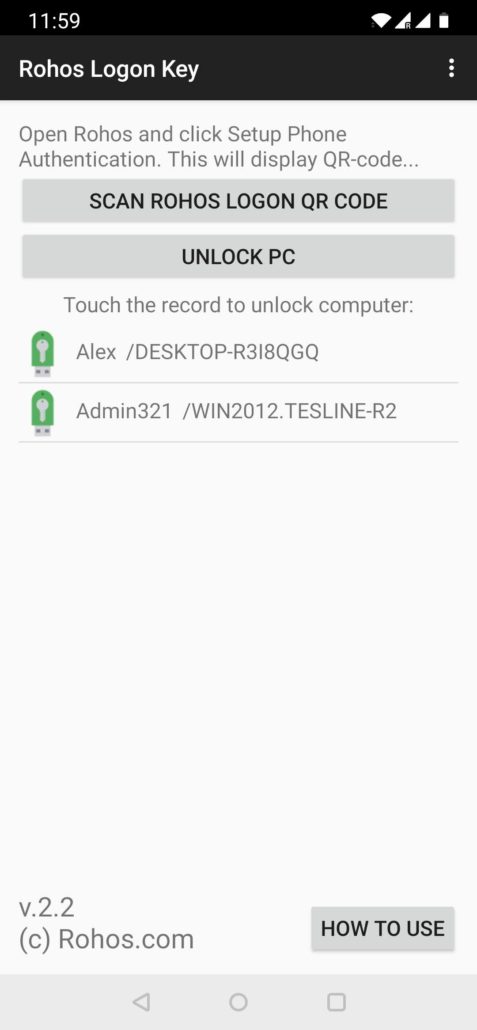
Smartphone with Rohos Logon Key app
With the new “Push 2FA” login method, Rohos allows unlocking your Windows Desktop without entering the password, just by using your iPhone or Android smartphone. Read More>
Rohos 2FA Push token advantages:
- Out-of-band Multi-factor authentication. 2FA Push token is delivered via the Web Socket method that employs any available Internet connection on the smartphone.
- Support password replacement mode or Smartphone + Windows Password.
- Unlock the computer desktop console as well as remote session via Microsoft RDP, TeamViewer, AnyDesk, VNC, or alternative.
- 2FA Push token includes strong Encryption AES256 and OATH technology thus it is resilient against man-in-the-middle and reply attacks event on non-SSL\TLS channels.
- Rohos 2FA Push token implementation is open-source.
Rohos Logon Key for Android:
Fingerprint & Biometric enabled USB flash drives are also supported in Rohos Logon Key (Windows and Mac).
+ PIN code is supported on Mac and Windows
+ Configuration creates encrypted login profiles in the local computer

Tested devices: Transcend JetFlash 220 Fingerprint, takeMS MEM-Drive Biometric Scanline,
APACER AH620 Fingerprint Flash Drive under Windows and BioSlimDisk under Windows and Mac OS X.
See also Face recognition login with Rohos Face Logon.
Custom authentication devices:
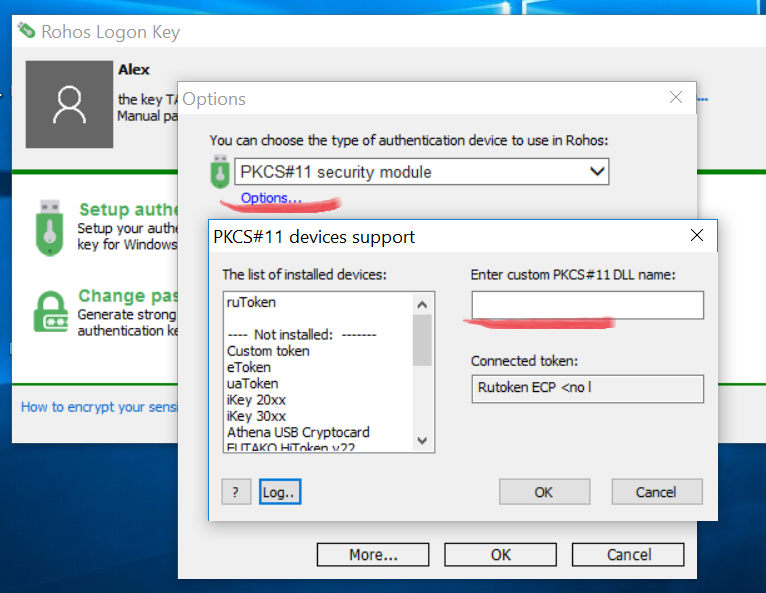
Rohos Logon Key and Rohos Disk use internal token API and could work with virtually any HSM authentication device. How to test HSM PKCS11 compliant device:
- Install Rohos Logon
- Open Rohos Logon > Options > Select PKCS#11 security module and click Options
- In the “PKCS#11 devices support” dialog box enter Enter the dll name of a custom PKCS11 supporting module (the dll file should be located in c:\windows\system32 or in the Rohos folder)
- Click OK > OK to close options.
- Open the “Setup authentication key” and it should detect the token connected to the USB port.
- After setting up USB Key, click Win+L to try logon
Using different authentication media with Rohos apps
Authentication on a local computer is possible with every device by default.
| Device type | Remote Desktop support |
Active Directory support |
Rohos Management tools |
PIN code | Rohos Disk Encryption support |
| USB Flash drive |
+
|
+
|
+
|
+
|
+
|
| YubiKey |
+
|
+
|
+
|
–
|
–
|
| Fido U2F key |
+
|
+
|
+
|
+
|
+
|
| Google Authenticator (OATH) |
+
|
+
|
+
|
–
|
–
|
| PKCS#11 compliant HSM tokens |
+
|
+ |
+
|
+
|
+
|
| MiFare 1K RFID smart-card |
+
|
+ |
+
|
+
|
+
|
| Addimat AG |
+
|
+ |
+
|
+
|
–
|
| RFID Cards: HidProx, Indala, EM Marine |
–
|
+ |
+
|
+*
|
–
|
| Bluetooth key |
–
|
–
|
–
|
–
|
–
|
|
–
|
|||||
| PC Lock USB dongle |
–
|
– |
–
|
–
|
–
|
| Mobile phone (Android/iOs) * |
+
|
+ |
–
|
–
|
+
|
*Smartphone with Rohos Logon app should be configured locally for all the workstations / servers.
*HidProx, Indala, EM Marine and other UID only NFC cards has no integrated feature for PIN code and this it is emulated by Rohos Logon Key by encrypting local/LDAP stored login .
Note: For some of the devices, it is necessary to install a support application or driver provided by the manufacturer.
If you are a Hardware Vendor manufacturing security devices, we would be glad to operate side by side, integrating your devices and equipment into our security solutions, thus satisfying increasing customers’ requirements.
To become a Partner apply now
USB tokens FAQ and error messages explained